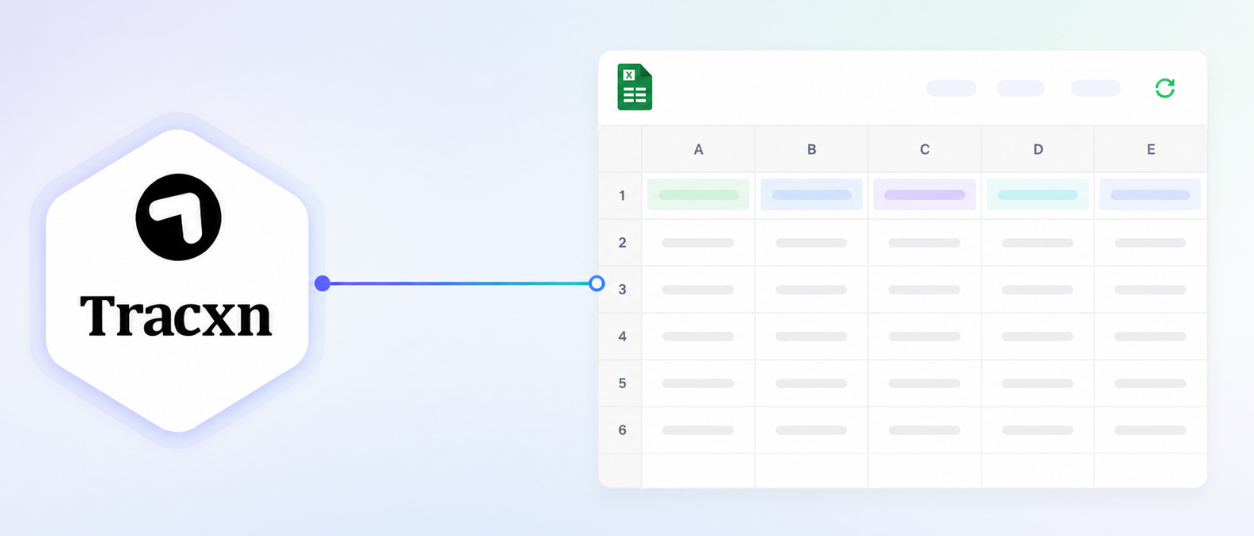
Pull Tracxn data directly using native Excel formulas
Pull Tracxn data directly using native Excel formulas
May 29, 2026
·
Platform
How this impacts your workflow
Pull Tracxn data using Excel formulas- Build trackers and dashboards inside Excel the same way you’d use any other data formula. No exports, no copy-paste, no switching tools.
Build formulas visually, no syntax knowledge needed - This works great for technical and non-technical users alike. Construct formulas by picking your data attribute, input range, and output cell from dropdowns. No prior formula syntax knowledge required.
Fetch data for one company or an entire list - Enter a company’s domain or website URL as input - pull a single attribute for one company, or fetch data for a list of companies in one go as per your use case. The output range is independent of the input range, so you can place your data anywhere in the spreadsheet.
Reorder columns without rewriting formulas - Attributes can be passed as cell references, so restructuring your spreadsheet - reordering columns, toggling headers, changing attributes - works natively without touching your formulas.
Keep your data refreshed at all times - ✅ Use the Manual Refresh Sheet button to update all formulas at once ✅ Set a refresh interval (e.g., every 60 or 90 minutes) and the add-in will automatically update your data on schedule.
Note: The add-in supports two data categories - Company Details (stage, funding, financials, team, M&A, sectors, and more) and Funding Round Details (round name, amount, investors, pre/post-money valuation, and more). For the full list of available data points, visit the Excel Add-in documentation.
How to get started
Install the Add-in
1] Open a Microsoft Excel Workbook or install directly from the Microsoft Marketplace. 2] Go to Insert > Office Add-ins. 3] Search for Tracxn and select it.
Connect your account
1] Click Login. 2] Sign in with your Tracxn username and password.
Once connected, you’re ready to start pulling Tracxn data directly into your spreadsheet.
Watch the setup walkthrough
Need help?
We’ve got you covered 24/7. Reach out via live chat, email at support, or WhatsApp—we’re always here to help.
Share
Try Tracxn for free
Premium features, no strings attached. See what the full platform can do for your research.